


Guía de actualización de la pantalla del clúster inalámbrico
Guía de pantalla de clúster inalámbrica para Android e iOS | Ikagoo
Android: transmisión Wi-Fi + audio Bluetooth (compatible con enrutamiento dividido). iOS: duplicación de pantalla AirPlay (sin AV dividido). Se recomienda vista horizontal para navegación.
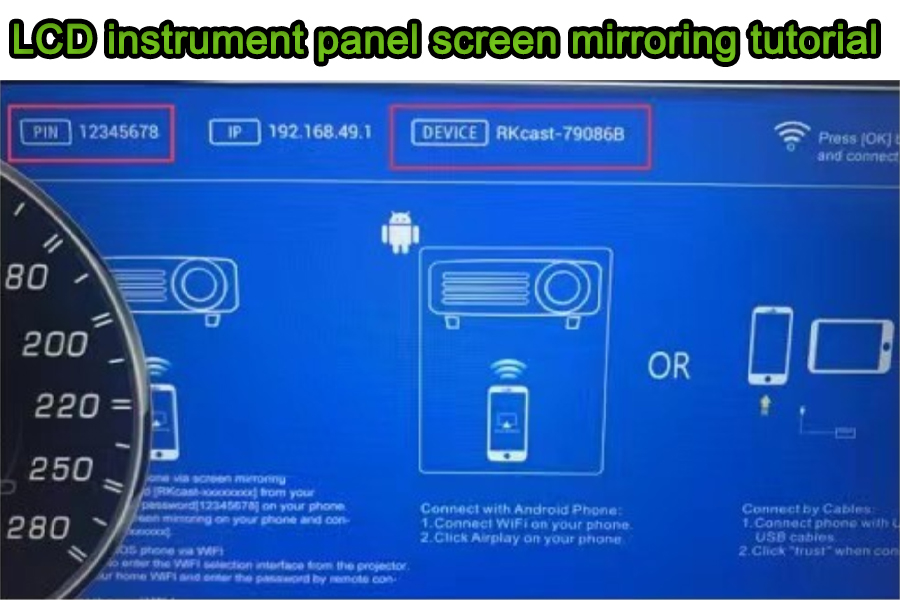
Visión general
Lo que cubre esta guía
Pasos prácticos y probados en campo para reflejar la pantalla de tu teléfono en un cuadro de instrumentos digital compatible con Ikagoo. Enfoque: Transmisión de video por Wi-Fi, con Audio Bluetooth de Android emparejamiento. iOS AirPlay refleja video pero no separa las rutas de audio y video.
Nota rápida de seguridad
Utilice diseños centrados en la navegación en orientación horizontal. Evite ver vídeos en movimiento mientras conduce. Cumpla siempre con las normativas locales sobre el uso de pantallas en el automóvil.
Encuentra Ikagoo cuadros de instrumentos digitales para Audi y Volkswagen.
Compatibilidad de dispositivos
| Proveedor / Función | Vídeo al cuadro de instrumentos | Audio a la unidad principal | Notas |
|---|---|---|---|
| Android (Proyección de Huawei / Cast) | Transmisión Wi-Fi | Bluetooth A2DP (teléfono → unidad principal) | Admite enrutamiento dividido (vídeo por Wi-Fi, audio por Bluetooth). |
| Android (Samsung Smart View / Cast) | Transmisión Wi-Fi | Bluetooth A2DP | La nomenclatura varía según el modelo/versión del sistema; los pasos son similares a los de Huawei. |
| iOS (Apple AirPlay) | AirPlay | No dividir AV | iOS no divide audio/vídeo durante la duplicación. |
Android — Pasos para la proyección inalámbrica (Ejemplo de Huawei)
- Abra el Centro de control → Proyección/Casting inalámbrico en el teléfono.
- Espere el escaneo de dispositivos; el dispositivo del clúster aparecerá en la lista.
- Seleccione el dispositivo del cuadro de instrumentos (el mismo nombre que se muestra en el cuadro). Para navegación a pantalla completa, desactive el bloqueo de orientación vertical y gire el teléfono a horizontal.
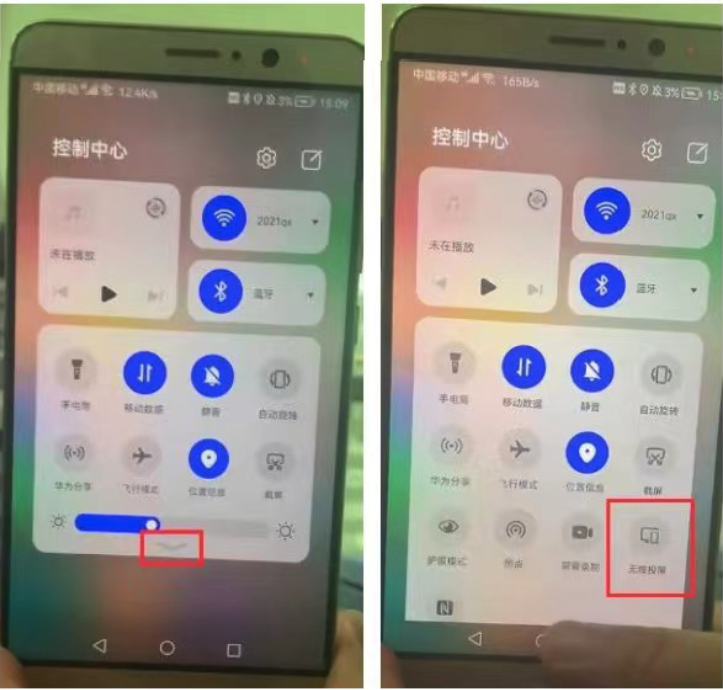
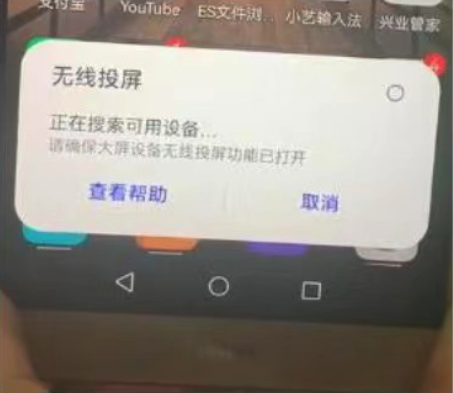
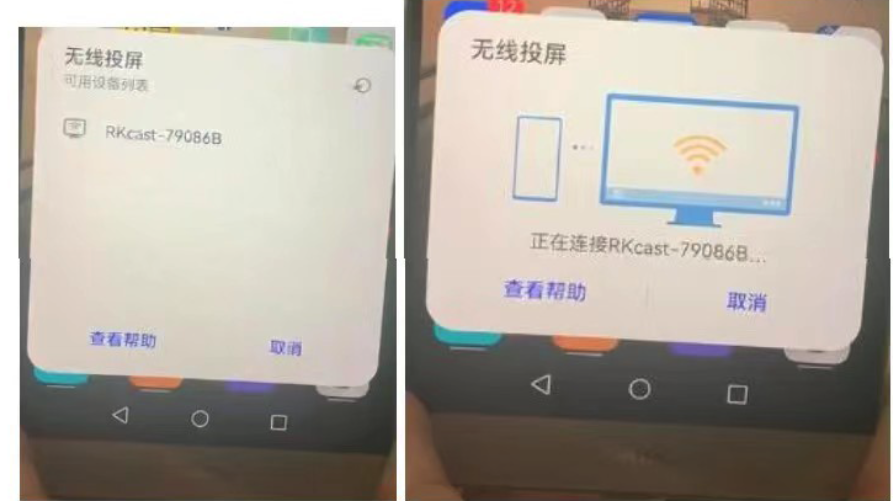
Recurso oficial: Android
iOS — Pasos para duplicar la pantalla con AirPlay
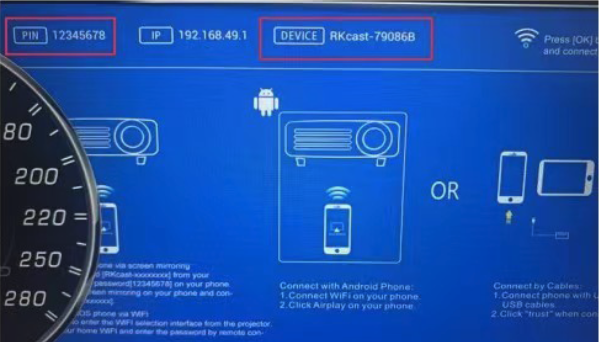
- Busca el SSID y la contraseña en el clúster (página Wi-Fi del clúster).
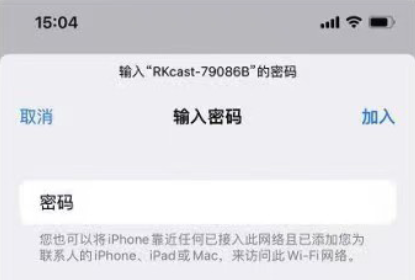
- Conéctate a esa red Wi-Fi en el iPhone: Configuración → Wi-Fi → selecciona el SSID del cuadro de instrumentos (contraseña, p. ej., 12345678).
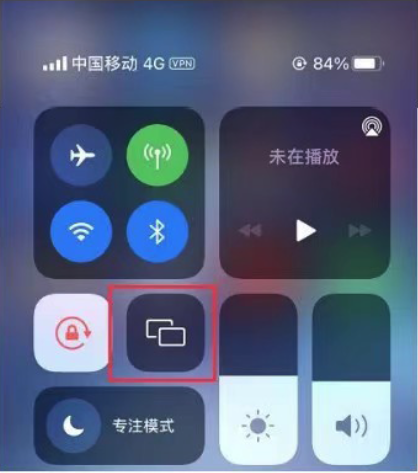
- Abre el Centro de Control → Duplicación de pantalla y toca el nombre del dispositivo que coincida con el cuadro de instrumentos. Para la navegación a ancho completo, desactive el bloqueo de orientación vertical y rota a horizontal.
Recurso oficial: Apple AirPlay
Estrategias de enrutamiento de audio/vídeo
Android — Preferido
- Vídeo: Transmisión por Wi-Fi a la pantalla del salpicadero.
- Audio: Bluetooth A2DP (teléfono → unidad principal).
- Resultado: audio estable con latencia de vídeo aceptable para navegación/apps.
Android — Alternativa
- Vídeo: transmisión por Wi-Fi.
- Audio: AUX de 3,5 mm / audio USB (si la unidad principal lo admite).
- Úsalo cuando los perfiles de Bluetooth estén bloqueados por dispositivos corporativos.
iOS — Práctico
- Vídeo: duplicación de AirPlay a la pantalla del salpicadero.
- Audio: Misma ruta que el vídeo por diseño (sin AV dividido).
- Para audio enriquecido: considera CarPlay de la unidad principal o un dispositivo Android.
Optimización de latencia y calidad
Do
- Monta la antena de la pantalla/transmisión sin obstrucciones.
- Usa horizontal la interfaz para navegación; desactiva el bloqueo de orientación vertical.
- Cierra las apps de streaming en segundo plano para reducir la contención de Wi-Fi.
- Mantén el teléfono a 1–2 m de la línea de visión de la antena.
Evita
- Colocar antenas detrás de marcos metálicos o salpicaderos gruesos.
- Duplicar vídeo en 4K; prefiere 720p/1080p para menor latencia.
- Rotación automática desactivada (provoca vistas verticales con bandas negras).
Lista de comprobación de solución de problemas
- ¿Dispositivo no encontrado? Activa y desactiva el Wi-Fi del teléfono; vuelve a abrir la página Wi-Fi del clúster. Algunos teléfonos guardan en caché los resultados de búsqueda durante ~10–20 s.
- ¿Se refleja pero sin audio (Android)? Olvida y vuelve a emparejar el Bluetooth; asegúrate de que A2DP/Audio multimedia esté activado en los ajustes del dispositivo.
- ¿Atascado en vertical? Desactiva el bloqueo de orientación vertical; gira el dispositivo antes de abrir la app de navegación.
- ¿Se entrecorta/va lento? Acorta la distancia; retira obstrucciones metálicas; cierra las subidas pesadas en segundo plano (p. ej., copia de seguridad en la nube).
- ¿Ruta de audio en iOS? AirPlay refleja audio y vídeo juntos; para audio separado, usa CarPlay o cambia a la transmisión desde Android.
Preguntas frecuentes
¿Por qué no hay sonido al transmitir?
Android: empareja el teléfono → unidad principal por Bluetooth (Audio multimedia activado). iOS: AirPlay no separa audio/vídeo; usa una entrada de la unidad principal compatible con iOS o cambia a la transmisión desde Android.
¿Puedo ver vídeos en el clúster?
Recomendamos usar diseños centrados en la navegación. Respeta siempre las leyes locales y conduce con atención.
¿Funciona con Samsung?
Sí. Los nombres varían (p. ej., Smart View / Cast), pero los pasos son similares al proceso de Huawei.
¿Android Auto o CarPlay afectan a esto?
Son independientes. La transmisión refleja la pantalla de tu teléfono; CarPlay/Android Auto se ejecutan como apps de la unidad principal con su propia interfaz y rutas de audio.
¿Qué resolución se recomienda?
1080p o 720p suele ofrecer el mejor equilibrio entre claridad y latencia en el coche.
¿Por qué mi pantalla no llena el clúster?
Desactiva el bloqueo de orientación vertical y gira a horizontal antes de abrir las apps. Algunas apps requieren reiniciarse tras la rotación.
¿Cómo mejoro la estabilidad?
Mantén una línea de visión despejada, reduce la interferencia de RF, minimiza la transmisión simultánea y asegúrate de que la antena del clúster no esté bloqueada por metal.
¿Esto anula mi garantía?
La transmisión de pantalla no modifica el cableado del vehículo. Consulta los términos de garantía del producto Ikagoo para obtener detalles de cobertura.
Glosario y cumplimiento
| Término | Significado |
|---|---|
| AirPlay | Protocolo inalámbrico de Apple para la duplicación de pantalla/audio; iOS no separa audio/vídeo al duplicar. |
| Miracast / Cast | Protocolos comunes de pantalla inalámbrica de Android usados por Huawei/Samsung (el nombre varía según el fabricante). |
| A2DP | Perfil avanzado de distribución de audio para transmisión de audio estéreo por Bluetooth. |
| Split AV | Enviar video por Wi-Fi al cuadro de instrumentos mientras se enruta el audio a la unidad principal por separado (compatible con Android, la duplicación de iOS no). |








Add comment
Lo siento, debes estar conectado para publicar un comentario.